How Mealime cooking mode worked
Mealime’s cooking-mode guide describes a mobile feature that puts one instruction at a time in large text. On iPhone, its documented route starts from a recipe in the meal plan, then the more menu and Open cooking mode. Android’s documented route goes through Instructions.
The guide also describes advancing with a hand gesture near the top of the screen or using arrows. It was last updated in 2019, so check the controls in your installed version. If a gesture does not work on your device, use the visible navigation instead of assuming the recipe itself is broken.
When the next instruction will not appear
First try the on-screen arrow. If it advances the recipe, the method is still accessible and the difficulty is with gesture navigation. Reposition the phone so you can comfortably reach the visible controls, then continue with taps if that works better in your kitchen.
If both directions and arrows appear unresponsive, keep your place by noting the current step and open the ordinary instruction view. Avoid repeatedly tapping while a pan needs attention. A printed method or a readable backup can be a useful fallback for that meal, while you investigate the app afterwards.
When you return to the recipe, look for the last completed action rather than the last sentence you remember reading. Reading ahead and completing a step are different things, especially when a recipe asks you to prepare two components at once.
Read the full recipe before starting
A single-step view reduces the amount on screen, but it can hide a preparation task until you reach it. Read through the full method once, gather the equipment and check whether an ingredient needs to be divided between steps. Set out measured ingredients when that makes the cooking sequence easier.
Keep your phone on a stable surface away from heat and splashes. A hands-free label is not a reason to put it beside a hot pan. Decide where the screen will sit before your hands are occupied, and use a separate timer if that is easier than changing views while cooking.
Keep the instructions as well as the recipe name
A favourite marker remembers which recipe you liked inside an account. It does not give you an independent copy of the method. Open an important recipe, copy its public link and use the backup tool to make a readable copy.
Inspect the beginning and the end of the downloaded instructions. Check for missing amounts, especially where a sauce or seasoning is mixed in a cooking step. A list of ingredients without all the preparation steps is not ready to cook from. Keep your personal changes separately using the recipe-notes checklist.
What to test in MealPot
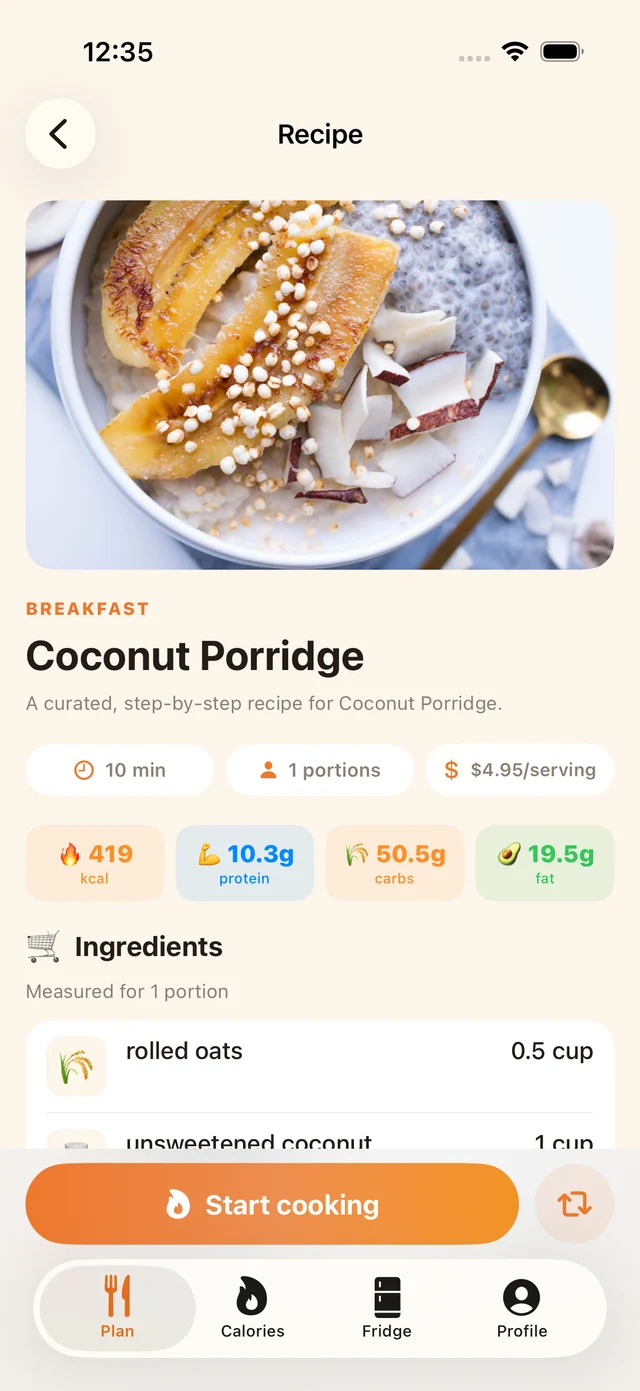
Open a recipe in the MealPot version you actually use. Check text size, scrolling, the place you return to after leaving the screen and whether the full method is available when you need it. The website backup is a readable file; it is not a recreation of Mealime’s gesture controls.
For a linked recipe, MealPot’s Pro importer works one recipe at a time. Review the result before saving. Cooking-mode preferences and gestures belong to the original app; a recipe-link import preserves recipe content rather than those controls.
A ten-minute kitchen test
Choose a familiar recipe and walk through its steps without cooking. Can you see the current instruction from where the phone will stand? Can you go back without losing your place? Can you find the ingredient quantity while reading the method?
Then test a real dinner before moving your whole collection. Note the one or two actions that felt awkward. A planner can look attractive in a screenshot yet require too much screen handling in your kitchen. The best replacement is the one that fits both the shopping trip and the cooking sequence.
Frequently asked questions
Does Mealime cooking mode work on PC?
The linked help article describes it as a mobile feature for iOS and Android. For a computer, keep a readable recipe open or print a copy.
Does the MealPot backup include hands-free controls?
No. It provides readable recipe content, not the original app’s interface or gesture settings.