TWO ROUTES
Use Mealime’s documented web print option while accessible, or download a checked readable recipe backup and print that through your device. Mealime’s closure notice gives 21 October 2026 as its discontinuation date.
Print a recipe through Mealime’s web route.
Mealime’s recipe-printing help page describes signing in to the web app, opening the recipe and using the printer icon beneath its instructions. The article was updated in February 2018 and says native mobile recipe printing was unavailable at that time. Treat that as older documented behaviour, not a current claim about every device.
If you can access the web recipe and its print control, inspect the preview before sending it to a printer. You want the recipe content rather than a page containing only its title, photo or sign-in screen. Check the last page as carefully as the first; long instructions can continue beyond an attractive opening page.
If a control differs from the article, use the options actually shown by the service and your device. Do not spend the time available repeatedly searching for an old button while a readable copy is accessible through another route.
A grocery-list printout is a different document.
The grocery-list printing guide, updated in July 2019, describes an iOS More → Print route and a printer icon at the bottom of the web grocery list. This differs from the older recipe-printing article. Check which document you want before following the instructions.
Finish the meal selection and serving counts before printing the list. Check pantry stock, add other household purchases and decide whether completed items should appear. Label the page with the week or meal names so you can distinguish it from another similar list on the kitchen counter.
A printed grocery list does not usually tell you how to cook the dishes. Keep the recipes separately, including their quantities and steps. If you later change dinner, update the list before shopping; a paper copy will not reflect changes made in an app.
Turn a readable website backup into paper or PDF.
The MealPot website backup tool can create a readable text copy from supported recipe inputs. Its download options are text and JSON. It does not directly generate a finished PDF; printing or saving as PDF happens in the application you use to open the readable copy.
- Open the accessible Mealime recipe and use its Share → Copy link action. The illustrated copy-link guide shows the route.
- Paste the recipe link into the website backup form and request the preview.
- Compare the preview with the source. Resolve missing or unclear quantities and confirm that every cooking step is present.
- Download the readable text version after reviewing it. Keep JSON separately if you want that structured backup format.
- Open the text file in a suitable document or text application. Use that application’s Print command, then choose a printer or a PDF destination if your device provides one.
- Open the saved PDF or inspect the paper pages to confirm the result is complete.
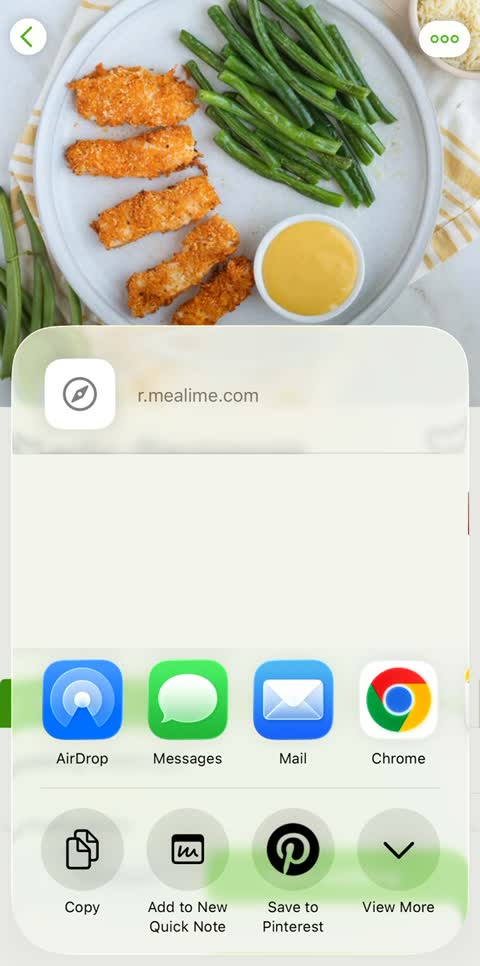
This screenshot shows Copy in a Mealime recipe share sheet. Copying the link is the input step for a backup; it does not itself create a printable recipe file.
A link copy depends on the source being reachable when you use it. Once a checked readable file is saved on your device, open that file directly to confirm you have retained the actual ingredients and instructions. A bookmark pointing to a recipe and a saved recipe document are different things.
Make one trial copy before printing a collection.
Choose a familiar recipe with enough ingredients and steps to exercise the whole page. Print or save that one first. If the text is too small, a heading is clipped or the final instruction is missing, fix the document or print settings before repeating the process for other favourites.
| Part of the copy | What to inspect |
|---|---|
| Recipe identity | A clear title and source link. |
| Serving count | The yield that matches the ingredient amounts. |
| Ingredients | Names, quantities, units and any separate sauce or dressing. |
| Method | Every numbered step in the right order, including the ending. |
| Readability | Comfortable text size, complete pages and visible fractions. |
The website’s structural checks cannot establish that an extracted amount is correct. A recipe can contain a title, ingredients and steps while still losing an important fraction. Keep your comparison with the original as part of the process.
Store the copy where you will find it again.
Use a recognisable filename, such as the recipe title and its original serving count. If you scale it later, keep the original and make the changed quantity clear. The serving guide explains how to adjust ingredients without blindly multiplying cooking time.
MealPot’s in-app Pro recipe-link import is separate from this website backup-and-print route. This guide does not claim a native MealPot print button or automatic PDF import. A readable paper or digital copy can remain useful alongside whichever planner you choose.
Common questions
Can I export a Mealime recipe directly to PDF here?
The website tool downloads text or JSON. Open the readable text in a suitable application and use its print-to-PDF option if available, then inspect the resulting file.
Why do the Mealime recipe and grocery print instructions differ?
They are separate help articles for separate documents. The older recipe guide describes the web app; the grocery-list guide also documents an iOS route. Follow the controls available for the document you are using.
Is a saved recipe link enough to keep cooking later?
A link still depends on the destination. Keep a checked document containing the actual ingredients and complete instructions if you want a readable copy in your own files.
Keep the favourites you actually cook.
Start with one recipe and inspect its finished copy.