START HERE
Mealime builds the grocery list from your selected meals. Check what you already have, add other household purchases and review the list again after changing the plan. Mealime’s official notice announces discontinuation on 21 October 2026.
Understand which list you are looking at.
Mealime’s grocery-list documentation says a new meal plan replaces the list with ingredients for the new selection. It groups items into shopping categories and lets you check them off. The help article was updated in 2019, so use it as a documented workflow and check the controls in your current app.
Before heading out, compare the quantities against your kitchen. Having a bag of rice does not tell you whether enough remains. Also check whether the ingredient is reserved for another meal. Cross off an item only when its role in this plan is covered.
Keep the recipe’s form of an ingredient visible: dry rice, cooked rice and ready-to-eat rice are different purchasing requirements. The same applies to drained beans and a tin’s total weight. Automatic grouping makes the list readable; it does not remove the need to inspect unclear descriptions.
Add the groceries the recipes cannot know about.
The official custom-item guide describes an “Add something…” field on mobile and a plus button in the web grocery list. It also describes assigning categories and amounts. Use the available controls to include breakfast, drinks and household essentials alongside dinner ingredients.
To correct an existing item, Mealime’s editing guide describes opening its details and choosing Edit, or long-pressing the ingredient. The documented fields include name, quantity and category. Check that a correction represents what you need to buy rather than accidentally changing your understanding of what the recipe needs.
For example, your recipes may need 350 g of rice but the shop may sell a 500 g bag. A note recording the intended purchase is useful; the extra 150 g does not automatically belong in the cooking pot. Our pack-size guide keeps these amounts separate.
A checked item may be hidden, not gone.
Mealime’s completed-items guide says checking an item hides it. On mobile, the documented More menu offers Show completed items; unchecking an entry returns it to the active list. On the web, the article places completed items in a “Got’em” group at the bottom.
Before adding a duplicate, inspect the completed section. Someone else may have bought it, or you may have checked it while looking for details. Agree what “complete” means in your household: bought, already owned, or no longer needed. If that distinction matters later, add a note outside the checkbox.
Changing meals can also change the list. The meal-plan editing documentation says generated ingredients are replaced, custom additions carry over and completed entries may need checking again. After an edit, compare the new list with purchases already made rather than assuming the old checkmarks still describe the situation.
Save the list and the recipes as separate things.
A shopping list tells you what to buy. It does not usually preserve a recipe’s full method or which amount belongs to each dish. Keep a readable copy of this week’s list and save the recipes you care about separately. Our printing guide covers paper and PDF options.
Before keeping a list for another week, label it with its meals and serving counts. Then recheck pantry stock when you reuse it. An unchecked copy of last month’s list is a starting point, not proof you need to buy everything on it again.
Test the shopping routine in MealPot.
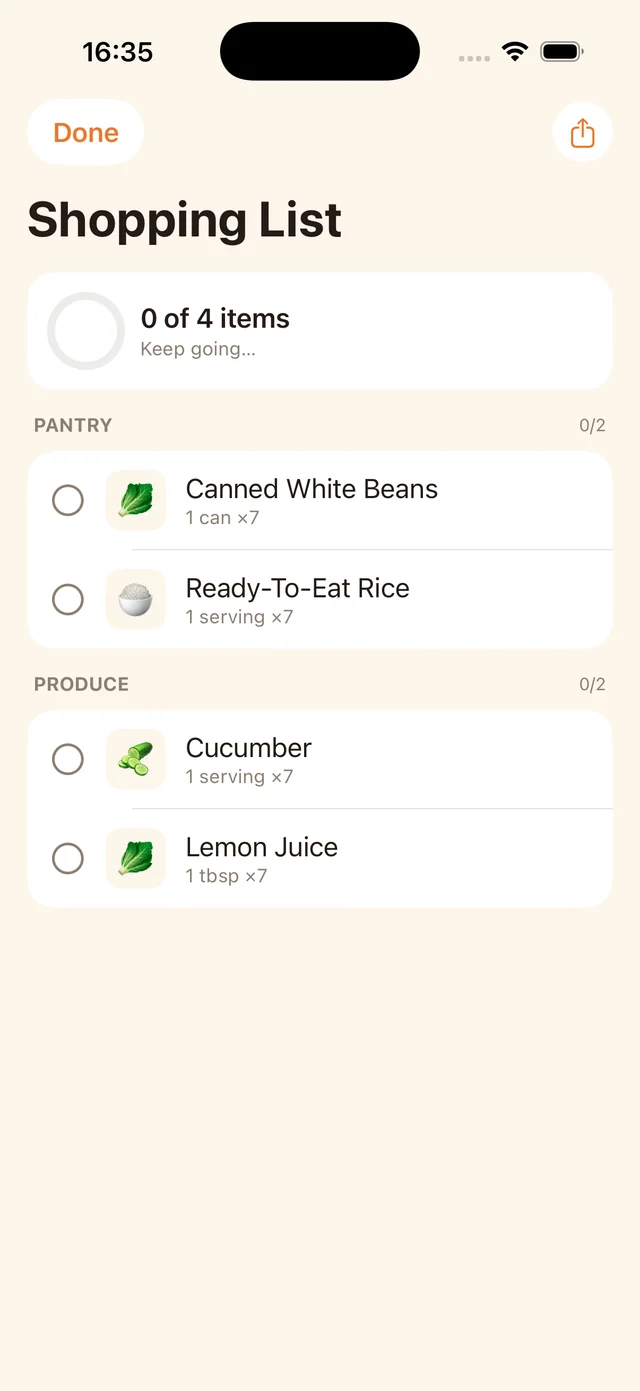
This owned MealPot screenshot shows grouped ingredient entries and checkboxes. It is an example list, not a retailer order.
MealPot presents a shopping list alongside its meal plan. Test a small selection of dinners and inspect the resulting entries: are the descriptions clear, do the amounts make sense for your portions, and can you shop comfortably from the categories? A successful test should end with a list you can use in your usual shop.
The website’s recipe backup tool produces recipe copies, not a transferred Mealime grocery list. Keep that distinction when switching. For the manual process behind any planner, follow the worked aisle-list example.
Common questions
Why did my Mealime grocery list change?
A new or edited meal plan can regenerate its ingredients. Compare the current plan, your custom additions and completed items before assuming data has disappeared.
Can I add non-recipe items?
Mealime’s help documentation describes custom additions on mobile and web. Include them in your final review, particularly if you edit the meal plan afterwards.
Does the recipe backup tool export my shopping list?
No. It creates recipe backups. Keep your grocery list separately, together with its meal names and serving counts.
Keep dinner and shopping connected.
Review your meal plan before building the next list.